
Why Laptop Myths Cost Shoppers Real Money
Laptop marketing is dense with numbers, acronyms, and implied prestige - and that environment is fertile ground for persistent myths. Shoppers routinely pay a premium for specs they don't need, or dismiss capable machines based on unfounded assumptions. Understanding what specifications actually do in daily use is the most reliable way to avoid both traps.
This article walks through the most common misconceptions, corrects the record with evidence-based context, and helps you match a machine to your real workload. For a plain-language breakdown of the terminology you'll encounter while shopping, see the Laptop Buyer's Glossary.
Myth
More RAM always means a faster laptop. If 8GB is good, 32GB must be better.
Fact
RAM only improves performance up to the threshold your workload actually demands. Beyond that point, additional memory sits idle.
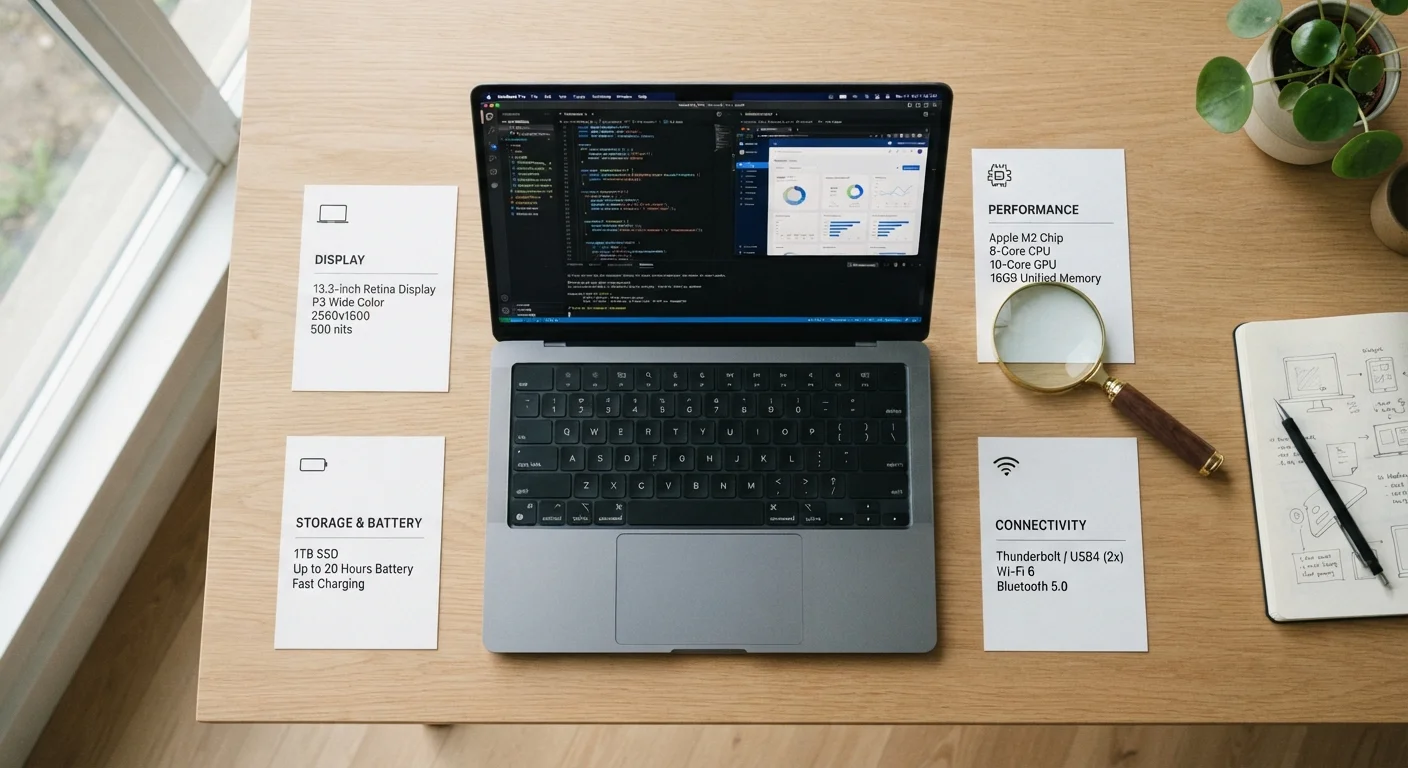
For web browsing, document editing, video calls, and streaming, 8GB of RAM is sufficient for most users. 16GB provides meaningful headroom for heavier multitasking or light creative work. 32GB and above is primarily relevant for video editing, 3D rendering, running virtual machines, or certain data-heavy professional applications. Paying for RAM you'll never use doesn't make a laptop faster - it just raises the price. See what RAM actually means for everyday use for a practical breakdown.
Myth
Mac laptops don't get viruses, so you never need to worry about security.
Fact
macOS can be targeted by malware, adware, and phishing attacks. No operating system is inherently immune.
The perception that Macs are virus-proof stems largely from their historically smaller market share, which made them a less attractive target for malware authors. As Mac adoption has grown, so has the volume of threats targeting the platform. Adware, trojans, and browser-based attacks have all been documented on macOS. Responsible security practices - keeping the OS updated, using reputable software sources, and being cautious with unsolicited downloads - apply equally regardless of which operating system a laptop runs.
Myth
A higher GHz clock speed means the processor is definitively faster.
Fact
Clock speed is one factor among many. Architecture, core count, cache size, and thermal management all influence real-world performance.
Two processors with different GHz ratings from different generations or architectures can perform very differently on the same task. A newer processor running at a lower clock speed will often outperform an older chip running faster, because each clock cycle accomplishes more work. When comparing processors across product lines or generations, benchmarks from independent testing organizations provide far more reliable guidance than raw GHz figures alone.
Myth
Chromebooks are only for children and can't handle real work.
Fact
Chromebooks running ChromeOS support Android apps, Linux environments, and web-based workflows used by professionals across many fields.
Chromebooks were originally positioned as simple, low-cost devices. Modern Chromebooks have expanded considerably: they run Android applications from the Google Play Store, support Linux app installations for developer tools, and handle cloud-based productivity suites without issue. For users whose workflows live primarily in a browser or cloud platform, a Chromebook can be a genuinely capable machine. Limitations remain around locally installed Windows or macOS software, making them a poor fit for users who depend on specific desktop applications.
Myth
A laptop with a dedicated graphics card is always better than one with integrated graphics.
Fact
Dedicated graphics deliver meaningful benefits only for gaming, video editing, and 3D work - for most other tasks, integrated graphics perform equally well.
Modern integrated graphics - including those found in current-generation processor families - handle video playback, photo editing, and everyday computing without bottlenecking performance. A dedicated GPU adds cost, increases power consumption, and generates more heat. For a shopper whose primary activities are document work, browsing, and communication, paying extra for discrete graphics typically adds no practical benefit. Those who game, render video, or work with visual effects tools will find the tradeoff worthwhile.
Myth
A slow laptop just needs more storage space - that's why it's lagging.
Fact
Storage space affects a laptop's ability to write temporary files, but slowdowns are more often caused by background processes, aging hardware, or a fragmented software environment.
While a nearly full drive can impair performance - particularly on traditional hard drives - simply freeing up storage rarely resolves persistent sluggishness. More common causes include software accumulation, startup programs, thermal throttling as a laptop ages, and mechanical hard drives that are inherently slower than solid-state alternatives. Understanding the actual source of a slowdown leads to more effective fixes. Our article on why laptops slow down over time walks through the real causes in detail.
Putting the Myths in Context: What Actually Drives Laptop Performance
Performance is never determined by a single spec. A laptop's real-world speed reflects the interaction between its processor, memory, storage type, thermal design, and the software it's running. A machine with a modest CPU and a fast solid-state drive will often feel snappier than a higher-clocked processor paired with a slow spinning hard drive.
8GB
RAM sufficient for most everyday laptop tasks
Industry analysts and hardware reviewers consistently find that web browsing, office applications, and video streaming rarely push beyond 6-7GB of active memory usage under normal conditions.
30-50%
Typical gap between advertised and real-world battery life
Independent laptop testing consistently finds real-world endurance falls significantly short of manufacturer claims, which are measured under controlled, low-demand lab conditions.
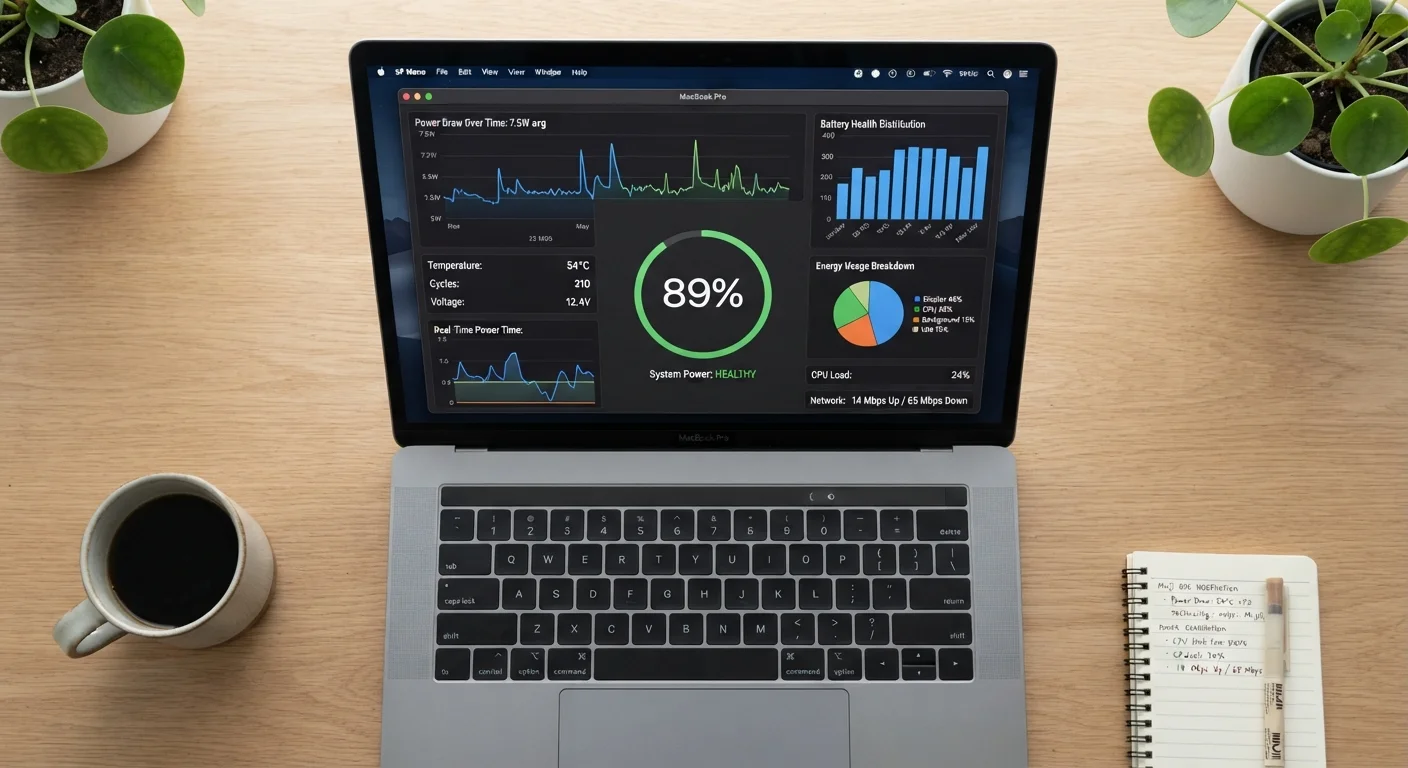
Battery life is another area where context matters enormously. Manufacturers test endurance at low screen brightness running simple productivity loops - conditions that rarely match actual use. Streaming video, running browser tabs, and using external peripherals all consume significantly more power. Our detailed breakdown of how battery life claims are measured explains what those advertised numbers actually represent.
Before committing to any purchase, it's also worth accounting for costs beyond the sticker price. Accessories, software licenses, and extended warranties can meaningfully increase total ownership cost - something the hidden costs of laptop ownership article covers in full. For a practical pre-purchase process, the pre-purchase checklist offers a structured way to verify every key decision before you buy.
Match Specs to Your Actual Workload
The most common and expensive laptop-buying mistake is purchasing for an imagined future workload rather than a realistic current one. Before evaluating any machine's specifications, write down the five tasks you perform most frequently on a computer. Use that list - not marketing language or maximum spec configurations - as your primary decision filter. If you're new to the process, the first-timer's complete walkthrough covers every major decision in plain terms.