Why Specs Only Make Sense in Context
A spec sheet tells you what a laptop can do in theory. Your task list tells you what it needs to do in practice. The mismatch between those two things is where most laptop regret originates - buyers either overspend on performance they'll never use, or under-buy and find their machine struggling within months.
The fundamental principle here is straightforward: hardware requirements scale with workload intensity. Web browsing, email, and word processing are computationally light. Video editing, 3D rendering, and modern gaming are computationally heavy. Most people fall somewhere in the middle, which is exactly where informed spec-matching pays off.
For a broader orientation to the laptop market before diving into task-by-task matching, the first-timer's complete walkthrough covers every major decision category without the jargon. If you're also evaluating devices for a child, note that the criteria for kids' devices differ substantially - tablet selection for children prioritizes durability and parental controls over raw performance.
Task Usage List
A written or mental list of your top daily computing tasks to cross-reference against spec requirements.
Manufacturer Spec Sheet
Used to verify RAM, processor generation, storage type, and display resolution before purchase.
Performance Tier Reference
A guide mapping entry-level, mid-range, and high-end tiers to real-world task demands.
Step-by-Step: Matching Your Tasks to the Right Specs
The steps below walk you through a structured process for identifying which specs actually matter for your workload. Work through them in order - each one narrows the field and builds on the previous decision.
What you will need
List your top three computing tasks
Before looking at any spec, write down the two or three things you do most on a computer. Common examples include web browsing, email, video streaming, word processing, video editing, photo editing, online gaming, coding, or virtual meetings. Be specific - 'light use' means different things to different people. If you primarily browse the web and write documents, your needs are very different from someone who edits 4K footage or runs data modeling software.
Map each task to a minimum RAM requirement
RAM (Random Access Memory) directly affects how many tasks a laptop can handle simultaneously without slowing down. Use these general thresholds as a starting point:
- 8 GB RAM: Web browsing, email, streaming, basic word processing, and schoolwork
- 16 GB RAM: Multitasking with many browser tabs, light photo editing, video calls, coding
- 32 GB+ RAM: Video editing, 3D rendering, advanced gaming, running virtual machines
If your tasks fall into multiple categories, size up to the higher requirement.
Identify the processor class your workload needs
Processors (CPUs) are categorized roughly into performance tiers. Entry-level chips handle everyday tasks efficiently and use less power, which helps battery life. Mid-range chips manage creative multitasking and moderate gaming. High-performance chips are designed for sustained demanding workloads like video rendering or simulation software.
As a rule: if your tasks are all in Step 1's 'light use' category, an entry-level processor is sufficient. If you edit video or game at higher settings, look for a current-generation mid-range or high-end chip. See our performance tier breakdown for a detailed mapping.
Choose the right storage type and size
Storage affects both speed and capacity. SSD storage is standard in most modern laptops and significantly faster than older HDD drives - faster boot times, quicker file access, and better overall responsiveness. For storage size:
- 256 GB SSD: Sufficient for web-focused users who store files in the cloud
- 512 GB SSD: A practical minimum for most users who keep local files, apps, and media
- 1 TB+ SSD: Necessary for video editors, photographers, and gamers with large libraries
Factor in display and GPU needs by task
Not all tasks need a premium display or a dedicated GPU. Match your use case to what's actually necessary:
- Schoolwork, browsing, writing: A standard 1080p (Full HD) display is sufficient; integrated graphics handles everything
- Photo editing or design work: Look for a display with good color accuracy (sRGB coverage above 90%) and at least 1080p resolution
- Video editing or gaming: A dedicated GPU is strongly recommended; higher-resolution or higher-refresh-rate displays improve the experience significantly
If you're choosing between an OS ecosystem, our Chromebook vs. Windows comparison clarifies which platform fits which workload better.
Verify battery life and portability fit your routine
If you work primarily at a desk with a power outlet nearby, battery life is a secondary concern. But if you commute, attend classes, or work from varied locations, aim for a rated battery life of at least 8-10 hours under typical use. Keep in mind that manufacturer-rated battery life is typically measured under light conditions; real-world numbers with demanding tasks can be considerably lower. Also consider weight: a 4-5 lb laptop may seem minor, but daily carry adds up. Use our pre-purchase checklist to verify these claims against independent reviews.
Match Specs to Tasks, Not to Trends
Marketing language around 'powerful' and 'blazing fast' rarely maps to what matters for your specific use. A lightweight processor paired with an SSD can outperform a technically faster chip on an older hard drive for everyday tasks. Focus on the spec categories that correspond directly to what you do - not on aggregate performance scores.
Don't Over-Spec for Tasks You Don't Do
Paying for high-end specs you don't use doesn't improve your experience - it just increases cost. A student doing research and writing assignments has no practical need for a dedicated GPU or 32 GB of RAM. Identifying your actual workload first protects your budget from unnecessary upgrades. See budgeting strategies to put your hardware spend in context.
Gaming and Video Editing Are Hardware-Intensive
These two workloads consistently require more from a laptop than any other common task. Gaming demands a dedicated GPU, sufficient VRAM, and a display capable of higher refresh rates. Video editing requires substantial RAM, fast multi-core processing, and ample SSD storage for project files. If either is a core use case, do not attempt to stretch a budget-tier machine to accommodate them - the performance gap is significant and not fixable with software.
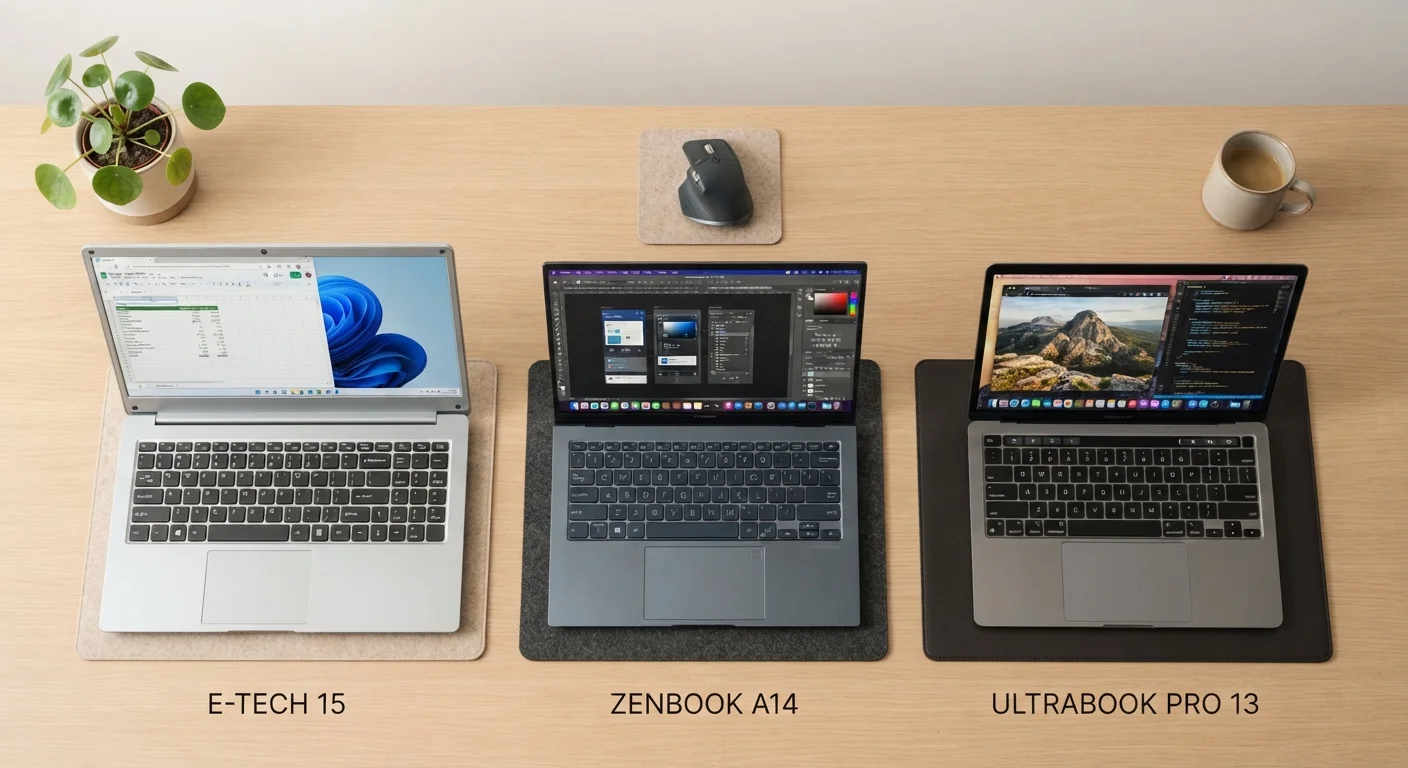
Once you've completed the steps above, use side-by-side product comparisons to evaluate specific models against the spec targets you've identified for your workload.