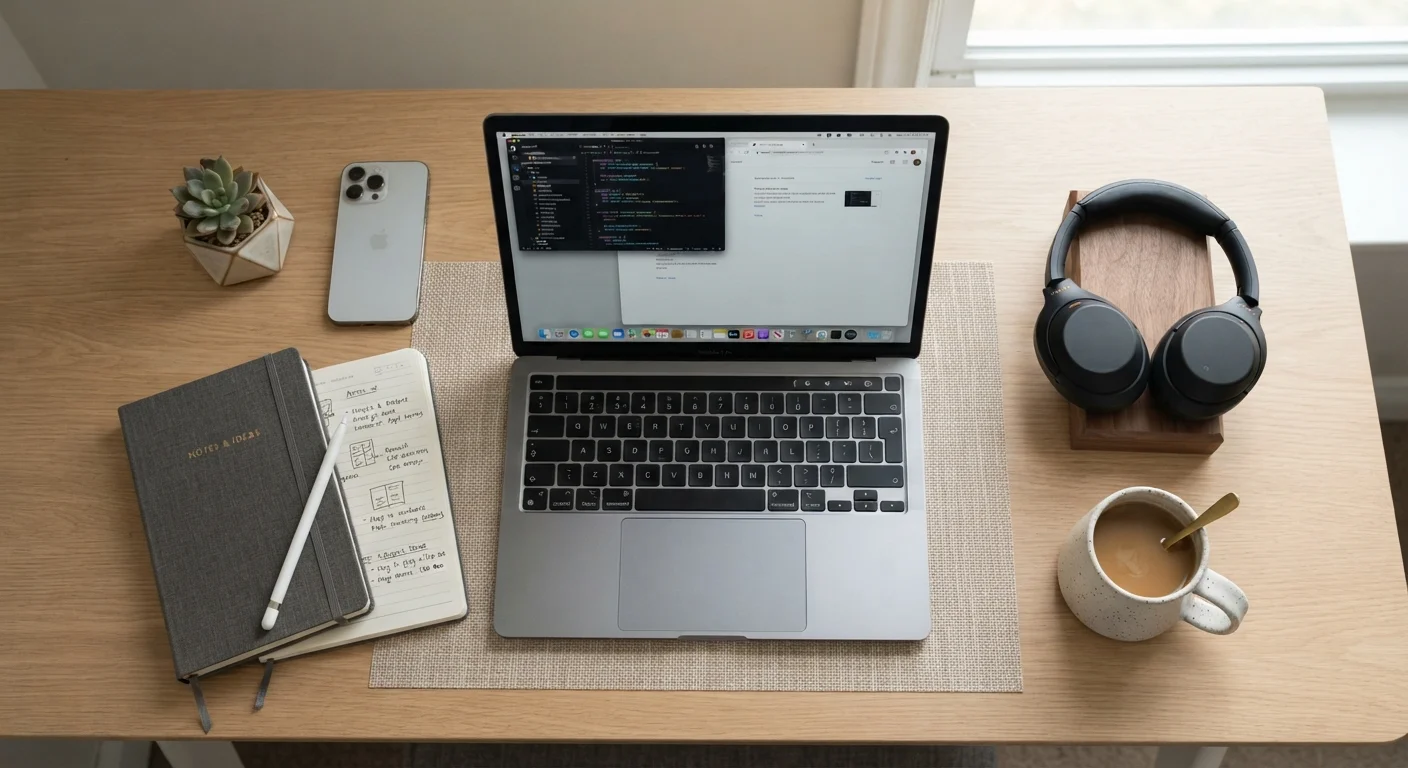

Start With Your Use Case, Not the Specs
Every first-time laptop buyer makes the same mistake: opening a product listing and fixating on gigabytes and gigahertz before answering a simpler question - what will you actually use this machine for? The answer determines nearly every purchase decision that follows.
Think in categories: Are you browsing the web, streaming, and handling email? Writing documents and joining video calls? Editing photos or video? Playing games? Each category demands a different hardware baseline, and overspending in the wrong area adds cost without adding value to your experience.
For a task-by-task breakdown of what different workloads actually require in hardware terms, see our task-by-task guide to matching a laptop to your work. Establishing your primary use case now keeps every section below grounded in your real needs rather than abstract specifications.
Write Down Your Tasks Before Browsing
Before visiting any retailer or product listing, write a short list of the five things you'll do most often on the laptop. This single step prevents spec-sheet distraction and keeps comparisons grounded in real use. Buyers who skip this step frequently purchase more - or less - machine than they need.
The Core Specs That Actually Matter
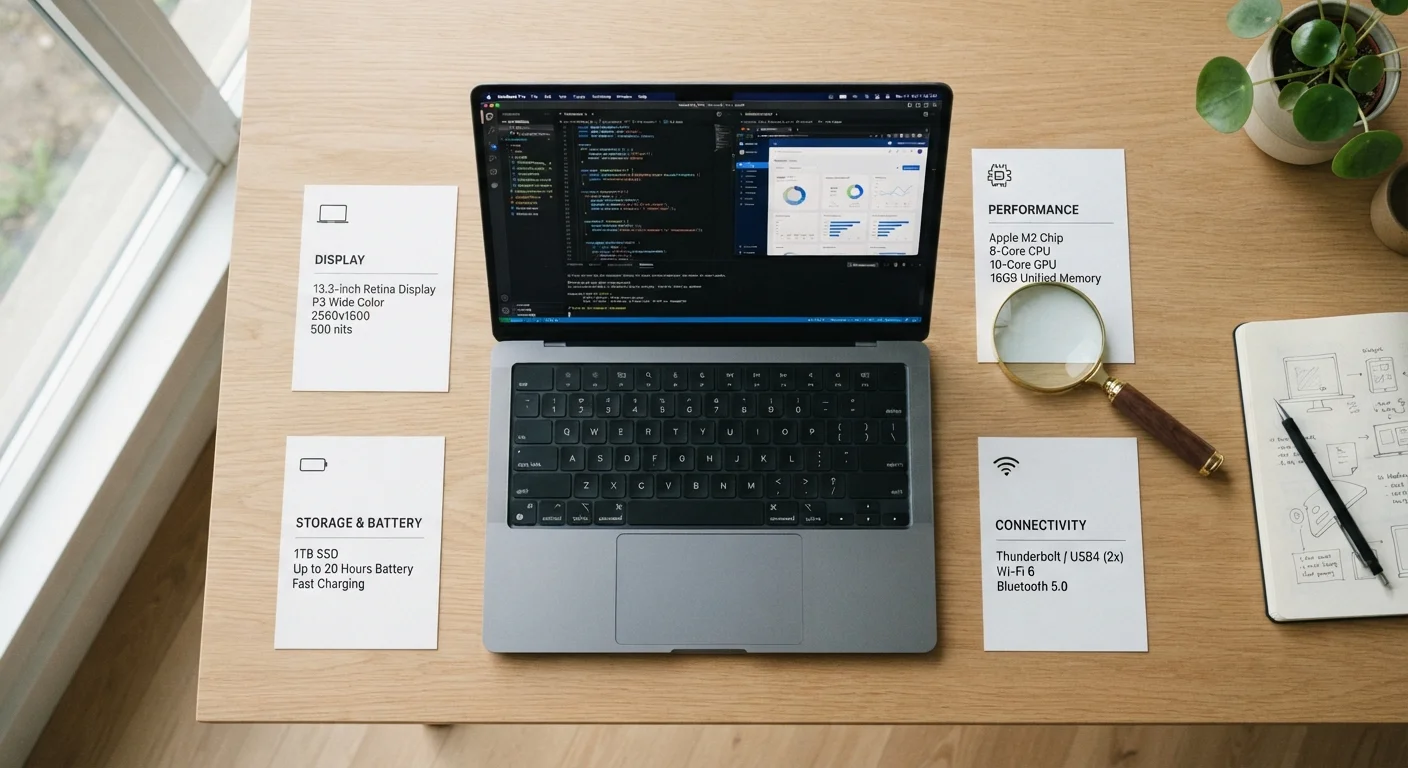
Laptop listings can list a dozen or more technical attributes, but for most buyers, three specifications drive real-world performance:
- Processor (CPU): The processor handles every computational task the laptop performs. For light use, a mid-range processor from a current generation is more than adequate. Heavy workloads - video rendering, 3D modeling - call for higher-tier chips. Generation matters as much as model name; a newer mid-range chip often outperforms an older high-end one.
- RAM (memory): RAM determines how many tasks your laptop can juggle simultaneously without slowing down. 8GB is a workable floor for everyday computing; 16GB handles multitasking and light creative work comfortably. Avoid confusing RAM with storage - they serve different functions.
- Storage (SSD vs. HDD): Virtually all current laptops use SSDs, which are dramatically faster than the older spinning-disk HDDs. A 256GB SSD covers basic needs; 512GB or more suits users with large media libraries or heavy software installations.
If you encounter unfamiliar terms while comparing listings, the Laptop Buyer's Glossary decodes the 30 most common ones in plain English.
CPU (Processor)
The central processing unit is the main chip that executes instructions for every program you run. Faster, more modern CPUs handle demanding tasks more smoothly.
RAM
Random Access Memory is short-term working space the laptop uses to run active programs. More RAM allows more applications to run simultaneously without slowdowns.
SSD
A solid-state drive stores your files and programs on flash memory chips. It boots faster and is more durable than older spinning hard drives (HDDs).
Operating System (OS)
The foundational software that manages the laptop's hardware and provides the environment where all other programs run. Common examples include Windows, macOS, and ChromeOS.
Display Resolution
The number of pixels that make up the screen image, expressed as width × height (e.g., 1920×1080). Higher resolution produces a sharper, more detailed picture.
Form Factor
The physical size and design of the laptop - including screen size, weight, and whether it converts into a tablet. Form factor determines portability and ergonomics.
Choosing an Operating System
The operating system (OS) is the software environment the laptop runs - it shapes the interface, available software, and how the device integrates with other technology you own.
- Windows
- The most widely used OS globally, available on hardware from dozens of manufacturers across every price tier. It supports the broadest range of software and peripherals, making it the default-safe choice for most first-timers.
- macOS
- Exclusive to Apple hardware. If you already use an iPhone or iPad, macOS integrates tightly with those devices. The software ecosystem is curated but smaller than Windows. Hardware pricing generally starts higher.
- ChromeOS
- A lightweight OS built around the Chrome browser and web-based applications. It performs reliably on modest hardware, making it cost-efficient for students or users whose work lives primarily in a browser. It is less capable for locally-installed professional software.
Software Compatibility Can Lock You In
Certain professional applications - industry-specific design tools, accounting software, or employer-mandated platforms - may only run on Windows. Before committing to macOS or ChromeOS, confirm that every program you rely on is available and fully functional on that platform. A quick compatibility check now avoids a costly return later.
Switching operating systems mid-ownership is rarely straightforward, so factor in long-term software needs - not just immediate familiarity - before deciding.
Size, Weight, and Battery Life
Physical form factor directly affects comfort and portability. Screen size is the primary dimension to consider:
- 11-13 inches: Highly portable, lighter weight, often at the cost of keyboard comfort and screen real estate. Suited for frequent travelers or students moving between classrooms.
- 14-15 inches: The mainstream range. Balances portability and usability for most users, with enough screen for comfortable extended work sessions.
- 16-18 inches: Desktop-replacement territory. Best for users who rarely move the machine and prioritize screen size and sustained performance over portability.
Battery life claims on spec sheets reflect manufacturer-controlled test conditions. A more reliable benchmark is to look for reported real-world figures from independent reviewers. For travel or all-day use away from an outlet, prioritize models with consistently reported real-world endurance of 8 hours or more under mixed workloads.
Understanding Budget Tiers
Laptop pricing generally clusters into performance tiers that reflect meaningful hardware and build-quality differences - though the exact dollar ranges shift as component costs change over time.
- Entry tier: Covers web browsing, document editing, and video calls on modest hardware. Build quality is often plastic-dominant; performance headroom is limited. Suitable for light, predictable workloads.
- Mid tier: Substantially faster processors and more RAM than entry models, often with better display quality and keyboard feel. This range handles most everyday professional and student tasks without compromise.
- Upper-mid and premium tier: Faster storage, higher-resolution displays, metal chassis, and longer-lasting batteries become standard. Justifiable for creative professionals, developers, or heavy multitaskers - not necessary for typical consumer workloads.
A laptop purchase is worth situating in a broader personal budget. For general guidance on planning a larger purchase without disrupting your finances, the Budgeting Basics hub offers practical frameworks. And if you want to challenge assumptions about which tier you actually need, our article on common laptop myths that lead shoppers to overspend is worth reading before committing to a price point.
What to Do Before You Commit
Once you have a shortlist of candidates, verification matters as much as selection. Confirm that the specifications listed match what ships in the actual configuration you're purchasing - not a higher-tier variant shown in the same listing. Check port availability: USB-A, USB-C, HDMI, and headphone jacks vary significantly between models and matter for your existing accessories and peripherals.
If possible, evaluate the keyboard and trackpad in person; ergonomics are subjective and critical for long-term comfort. Read the return and warranty terms carefully before purchasing from any channel.
Our pre-purchase checklist walks through every verification step systematically so nothing falls through the cracks before you finalize the transaction.
Refurbished and Open-Box Units Require Extra Scrutiny
Refurbished laptops can offer genuine value, but verify the source's certification process, warranty terms, and return policy before purchasing. Cosmetic grading (Grade A, Grade B) tells you about appearance, not internal component condition. Always confirm that the battery health and storage drive have been inspected or replaced.