What RAM Actually Does-and When More Matters
RAM (random access memory) functions as your laptop's workspace. Every application you open, every browser tab you load, and every file you're actively editing occupies a portion of RAM. When that workspace fills up, the system starts borrowing from much slower storage to compensate-a process called paging-and performance visibly degrades.
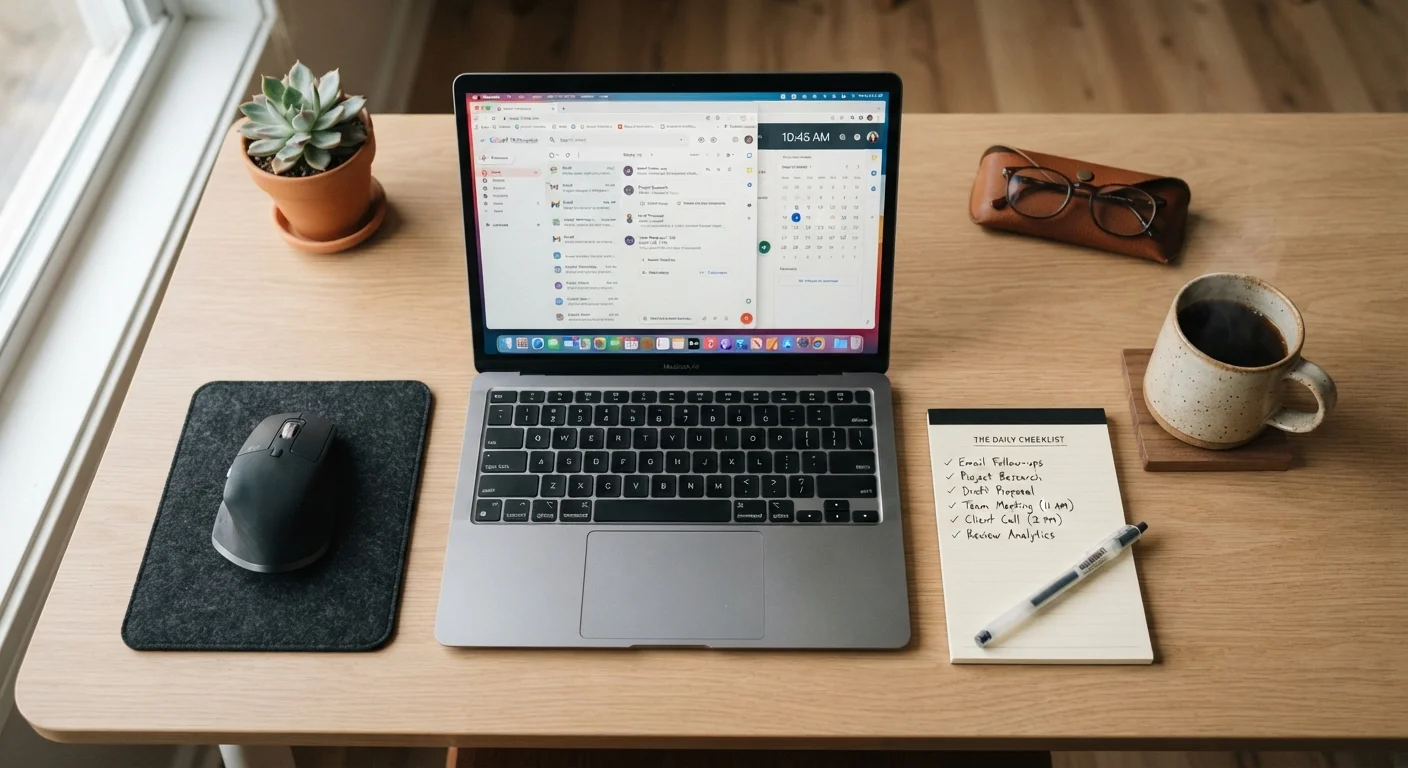
For practical context: 8 GB of RAM comfortably handles web browsing with a moderate number of tabs, video streaming, document editing, and video calls. Add photo editing software, multiple applications running simultaneously, or a habit of keeping dozens of tabs open, and 16 GB becomes noticeably more comfortable. Content creators working with video or 3D software regularly approach and exceed that threshold.
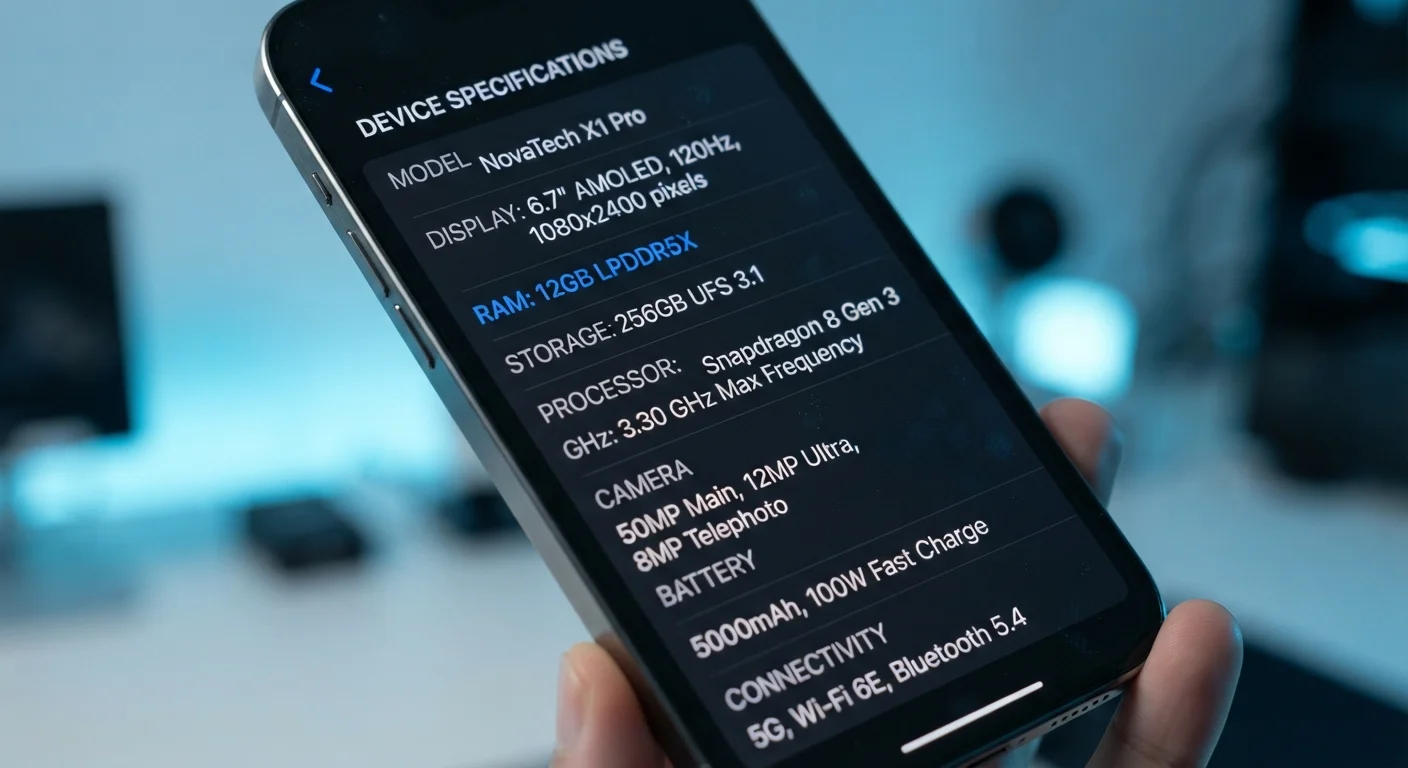
The key insight is that RAM doesn't make your laptop do things faster on its own-it determines how much you can do at once before things slow down. See how this compares to how smartphone manufacturers use the same term in our smartphone specs explainer.
RAM Upgradeability Varies by Model
Many slim and lightweight laptops now use soldered RAM that cannot be upgraded after purchase. If 8 GB feels borderline for your needs, it is generally safer to configure for 16 GB at the time of purchase rather than assuming you can add more later. Check the manufacturer's spec sheet for your specific model to confirm whether RAM is user-upgradeable.
Processors: Clock Speed, Cores, and What They Mean Day-to-Day
The CPU is the engine of your laptop. Two primary numbers describe it: clock speed (measured in GHz), which indicates how many cycles the processor completes per second, and core count, which indicates how many independent processing units it contains.
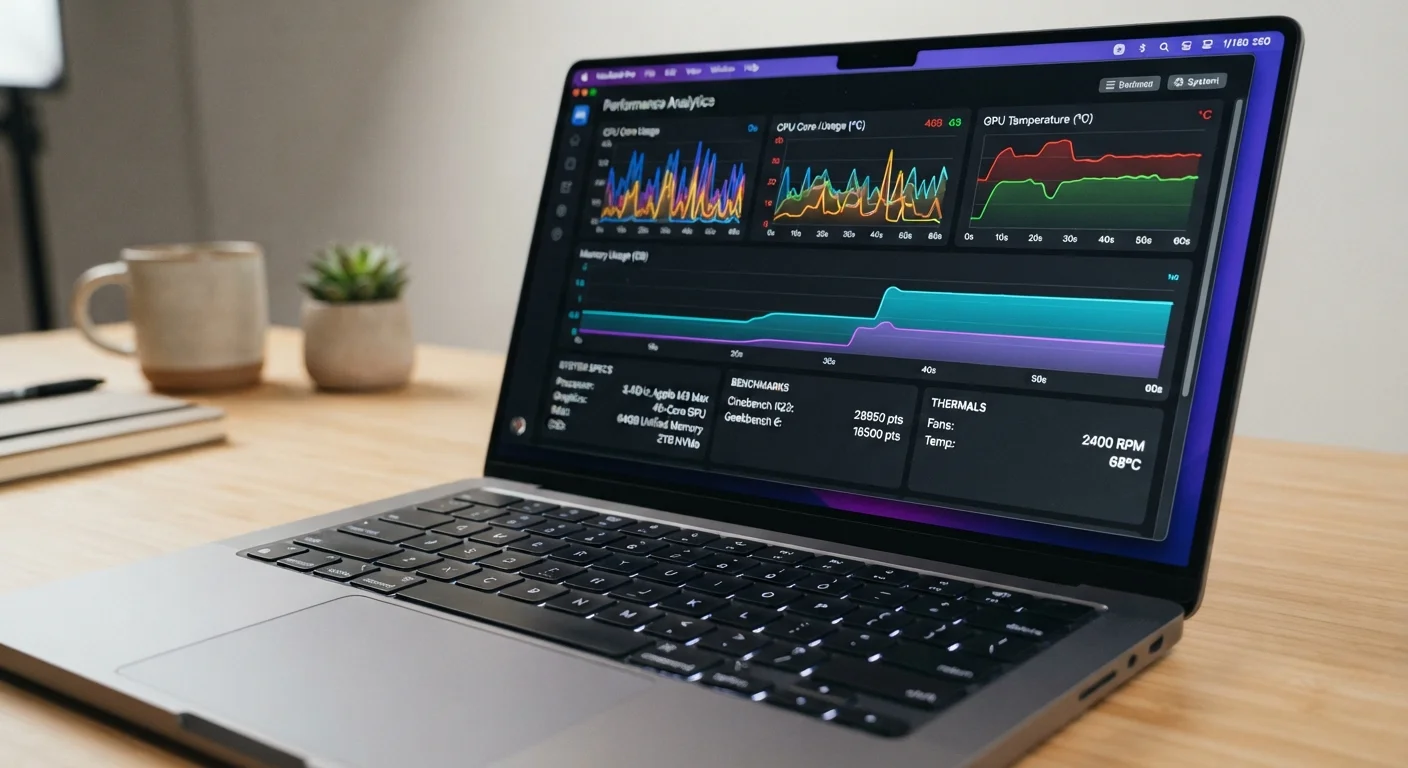
For everyday tasks-email, web browsing, document creation, video calls-even modest modern processors feel responsive. The difference between a mainstream and premium CPU becomes apparent only under sustained, computationally heavy workloads: compressing large video files, running data models, or compiling software code.
Processor naming conventions vary by manufacturer and generation, which can make comparison difficult. Our Laptop Buyer's Glossary decodes the model-number terminology you'll encounter on product listings. The most practical question to ask is whether the processor is current-generation-older chips at the same price tier frequently offer less efficiency and shorter software support windows.
~3-5×
Speed advantage of NVMe SSD over traditional HDD
Sequential read speeds for consumer NVMe SSDs commonly exceed 3,000 MB/s versus 80-160 MB/s for mechanical hard drives, a difference that translates directly to startup and load times.
16 GB
RAM threshold for comfortable multitasking
Independent hardware testing consistently shows that systems with 16 GB handle simultaneous browser-heavy and productivity workloads without paging to disk, while 8 GB systems show measurable slowdowns under similar loads.
2-4 generations
CPU generation gap affecting efficiency
Processor efficiency improvements across recent CPU generations have produced meaningful reductions in power draw under load, which directly affects real-world battery endurance even at equivalent performance levels.
Storage: Why Type Matters More Than Capacity
Storage capacity tells you how many files you can keep on the laptop. Storage type tells you how quickly everything loads. This distinction matters far more than many shoppers realize.
An SSD uses flash memory with no moving parts, delivering dramatically faster read and write speeds than a traditional HDD. The difference is tangible at every stage: startup, launching apps, saving large files, and waking from sleep. A laptop with a 256 GB SSD will feel noticeably more responsive than one with a 1 TB HDD, even though it holds far less data.
Within SSDs, the interface also varies. NVMe SSDs, which connect directly to the processor via PCIe lanes, are substantially faster than SATA SSDs. For most everyday users the real-world difference is modest, but for tasks involving large file transfers or frequent access to big data sets, NVMe makes a meaningful contribution.
As a general guide: 256 GB suits light users who rely on cloud storage; 512 GB works for most people storing a mix of documents, photos, and installed apps; 1 TB or more makes sense if you store large media libraries locally or do professional creative work.
Putting the Specs Together: Matching Numbers to Real-World Use
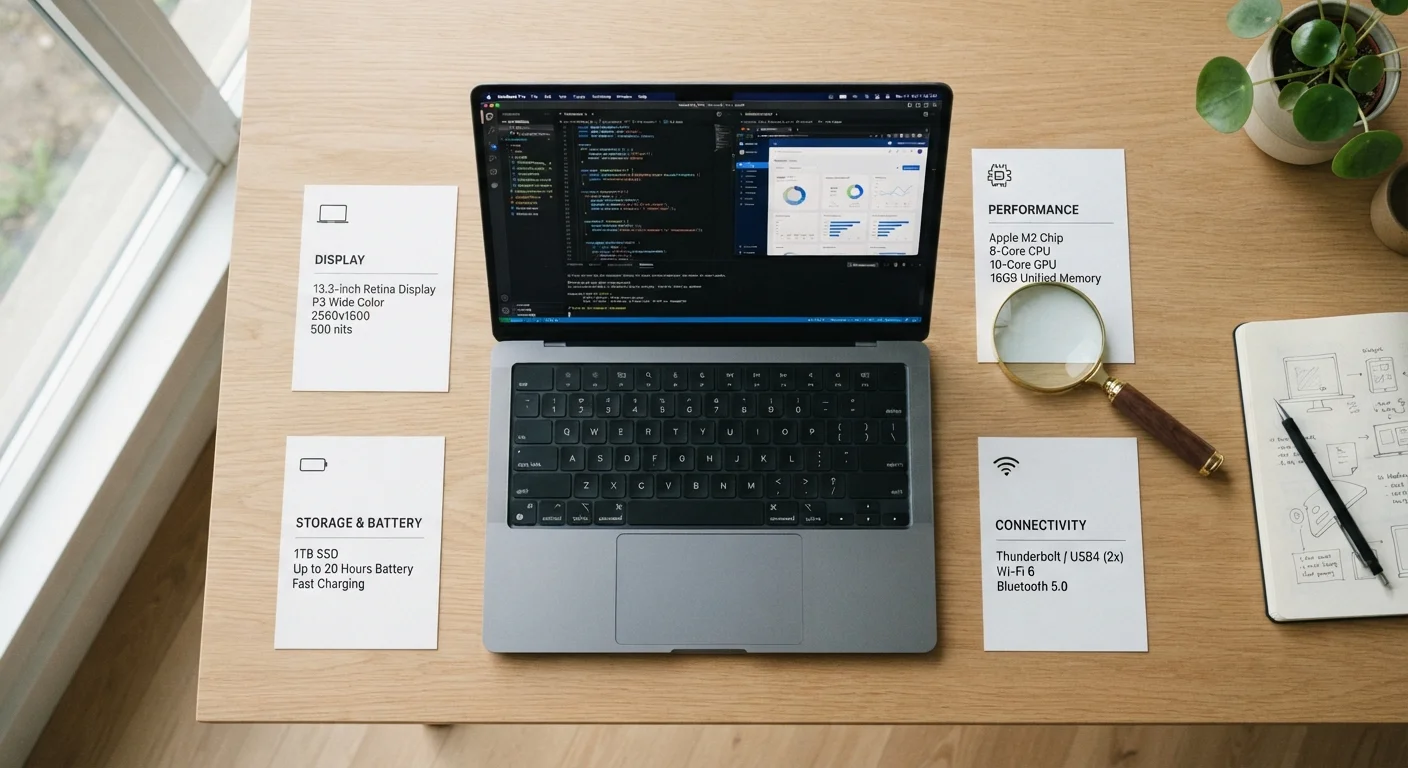
Specs only have value relative to what you actually need from a laptop. A configuration well-matched to your workload will feel faster and last longer than an over-speced machine that strains its battery to power components you rarely push.
A common mistake is focusing on single specs in isolation. A laptop with a fast processor but insufficient RAM will bottleneck under multitasking. One with ample RAM and storage but a low-efficiency older processor may run hot and struggle with battery life. The components work together, and balance within a budget typically delivers better outcomes than maximizing one specification at the expense of others.
Before committing to any configuration, use the pre-purchase checklist to verify that the specs you're considering align with the tasks you'll actually perform. And if you want to understand which tasks map to which spec tiers in granular detail, our task-by-task guide walks through the most common use cases.
Don't Overlook Workload Balance
When evaluating laptops within a budget, look for balanced configurations rather than a single standout spec. A machine with moderate RAM, a current-generation processor, and a fast SSD will outperform day-to-day expectations far more reliably than one that maximizes a single number at the expense of the others. Check whether the specs listed align with common misconceptions by reviewing our common laptop myths.