What Is the Soap Opera Effect?
You unbox a brand-new TV, queue up a film you love, and something feels immediately wrong. The picture looks almost too fluid - actors move like they're in a daytime drama or a cheap video call rather than a cinematic production. That phenomenon has a name: the soap opera effect.
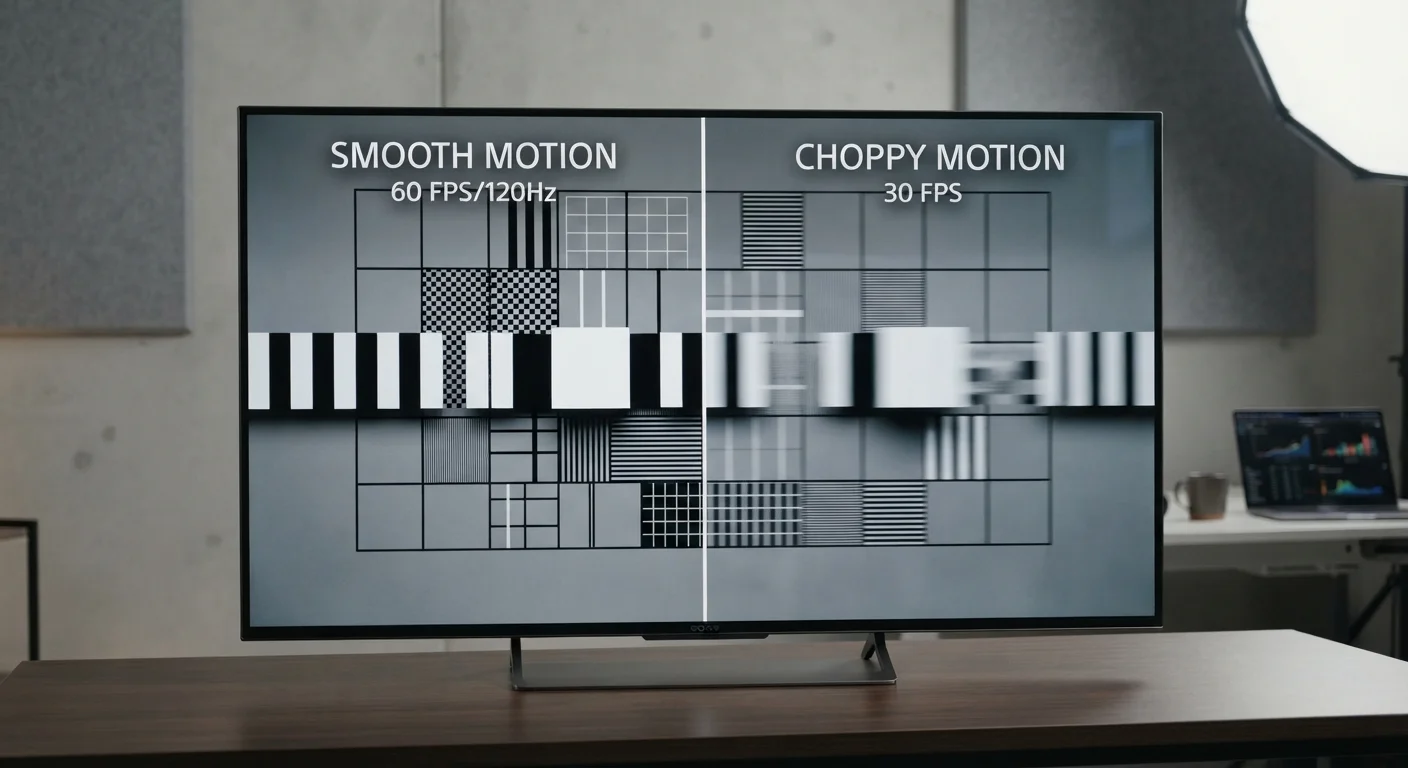
It's caused by a feature called motion interpolation (also marketed as motion smoothing). The TV's processor analyzes consecutive frames and inserts artificial frames between them, increasing the apparent frame rate far beyond what the source content contains. A 24fps film ends up being displayed closer to 60 or 120 apparent frames per second. The result looks hyper-real - technically smoother, but perceptually wrong for content shot at cinematic frame rates.
Nearly every major TV ships with this feature enabled out of the box. Manufacturers default to it because interpolated motion can look impressive during a 30-second showroom demo, especially for sports highlights. For narrative film and scripted TV, it undermines the director's intent entirely. See our refresh rate explainer to understand how native versus processed frame rates differ.
Common Mistakes That Make Motion Worse
Leaving the TV in its out-of-box picture mode without adjusting any settings.
Why it happens: Factory modes like Dynamic or Vivid are optimized for bright showroom floors, not home viewing - but they're the default, so most buyers never change them.
Treating motion smoothing as a single on/off toggle when it actually contains multiple sub-controls.
Why it happens: The settings menus on modern TVs are nested and use inconsistent naming, so many users turn off one feature while leaving related processing - like black frame insertion or judder reduction - still active.
Applying the same motion settings to all content types - movies, sports, and games alike.
Why it happens: It's easier to set everything once and forget it, and most buyers aren't aware that motion smoothing affects different content very differently.
Confusing judder with motion blur and applying the wrong fix.
Why it happens: Both issues make motion look wrong, but they have opposite causes - judder is the stutter from 24fps content on 60Hz panels, while blur comes from slow pixel response or low shutter speed in source footage.
Assuming that a higher advertised motion number always means better real-world performance.
Why it happens: Marketing figures like "240Hz" sound objectively superior, leading buyers to prioritize them over native refresh rate, which is the more meaningful specification.
Avoiding these errors gets you most of the way to a properly calibrated picture without spending anything extra.
How to Actually Fix It: Settings to Change Right Now
24fps
Standard cinematic frame rate for most films
The majority of theatrical films and scripted streaming content is shot and delivered at 24 frames per second, which motion interpolation artificially accelerates.
120Hz
Native panel refresh rate for clean 24fps display
A native 120Hz panel divides evenly into 24fps using a 5:5 pulldown, eliminating the judder that affects 60Hz displays running 24fps content via 3:2 pulldown.
The specific menu label varies by manufacturer, but the goal is the same: locate the motion processing control and either disable it entirely or dial it to its minimum setting. Common names include Auto Motion Plus (Samsung), TruMotion (LG), MotionFlow (Sony), and Motion Rate (TCL/Hisense).
A practical workflow: switch your picture mode from Dynamic or Vivid to Movie or Cinema first - these modes often disable interpolation by default and set color temperature closer to the D65 broadcast standard. Then navigate to the motion or picture clarity sub-menu and confirm motion smoothing is off. Play a familiar scene from a film and compare. Most viewers immediately prefer the result.
For sports and live content, a low-to-moderate smoothing setting can be beneficial - panning shots of a soccer field or basketball court genuinely benefit from reduced motion blur. The key is applying it selectively, not leaving it on globally for all content. Many TVs allow per-input or per-app picture mode settings, which lets you configure sports separately from your streaming apps. Learn about other overlooked setup details in our guide on what first-time TV buyers miss.
Don't Confuse Game Mode With Motion Settings
Enabling Game Mode on your TV dramatically reduces input lag, which is critical for responsive gameplay. However, Game Mode may automatically override picture presets - including re-enabling or disabling certain motion processing features. After activating Game Mode, verify your motion settings are still configured as intended rather than assuming they carried over.
Reading the Spec Sheet Through a Motion Lens
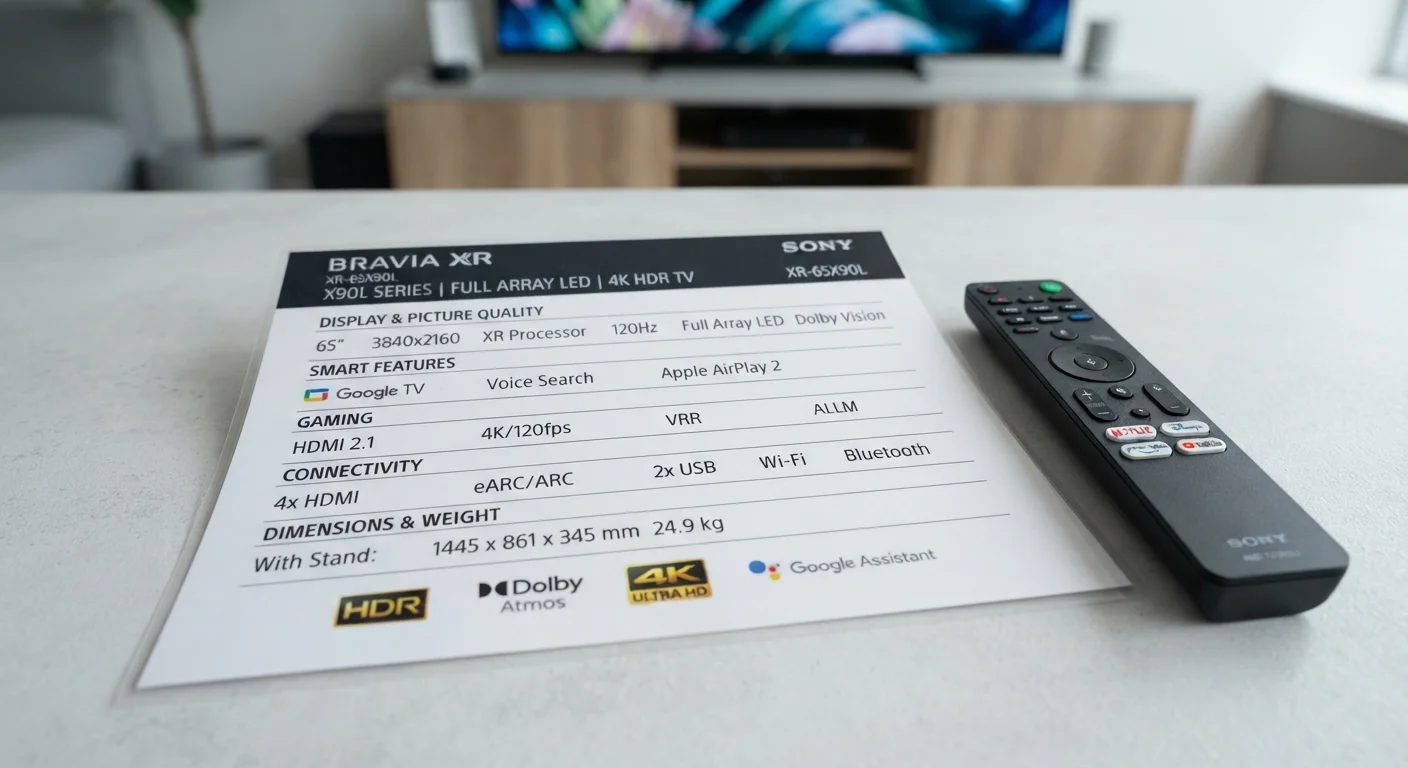
Marketing numbers like "960Hz" or "240Hz Motion Rate" don't reflect the panel's true hardware capability - they're processed or calculated figures. A TV advertised at 240Hz Motion Rate may have a native 60Hz panel running interpolation algorithms to simulate the higher number. A native 120Hz panel genuinely refreshes 120 times per second in hardware, which matters for gaming input lag and for cleanly displaying 24fps, 30fps, and 60fps content without fractional frame-rate math.
Understanding this distinction lets you evaluate whether a given TV's motion handling suits your primary use case. For cinephiles, a native 120Hz panel with interpolation disabled is often preferable to a native 60Hz panel with heavy processing. For competitive gaming, native refresh rate and low input lag mode matter far more than any smoothing feature. Our TV spec sheet guide breaks down which numbers to prioritize and which are largely marketing.
Motion Interpolation Is Not a Panel Defect
Some buyers assume the soap opera effect indicates a faulty TV and contact support for replacements. It is a software feature - not a hardware flaw - and is entirely correctable through settings. Before concluding your TV has a picture quality problem, adjust your motion and picture mode settings first. Most issues resolve without any hardware intervention.