Why Display Specs Deserve More Attention Than They Get
When shoppers evaluate laptops, processor speed and RAM tend to dominate the conversation. But the display is the surface you interact with for every single hour of use - and the specifications behind it determine whether that experience is comfortable and clear or straining and dull.
The challenge is that display specs are bundled together in ways that obscure what's actually important. A "Full HD" label sounds premium, but on a 17-inch screen it can look noticeably soft. A high resolution on a 13-inch display might require scaling adjustments to keep text readable. Understanding how these variables interact helps you evaluate what a screen will actually feel like to use - not just what it looks like on a spec sheet.
For a broader grounding in how hardware specs translate to real-world performance, see our guide to RAM, storage, and processors.
Screen Size and Pixel Density: The Relationship That Matters
Screen size is measured diagonally in inches, from corner to corner. Laptops commonly range from 11 inches to 17 inches, with 13-15 inches being the most common range for general-purpose machines. Larger screens offer more working space and are easier on the eyes during extended use - but physical size tells you nothing about sharpness.
Sharpness depends on pixel density, expressed as pixels per inch (PPI). A 1920×1080 display on a 13-inch screen packs pixels more tightly than the same resolution on a 15.6-inch screen, producing a visibly crisper image. As a practical threshold, displays above 150 PPI are considered sharp for typical laptop viewing distances.
150+ PPI
Pixel density threshold for sharp everyday use
Display industry guidelines generally treat 150 pixels per inch as the minimum for comfortable text clarity at standard laptop viewing distances.
300-400 nits
Brightness range for typical indoor environments
Panel reviewers and display analysts commonly cite this range as the practical minimum for comfortable use near windows or in moderately lit rooms.
120Hz
Refresh rate where motion smoothness becomes noticeable
Consumer testing indicates that the difference between 60Hz and 120Hz is perceptible to most users during scrolling and animation, while gains above 120Hz are more situational.
Manufacturers often offer the same chassis in multiple resolution tiers. Choosing a higher-resolution panel on a given screen size is frequently one of the most meaningful upgrades available - more so than moving from one screen size to the next.
Panel Types: TN, IPS, and OLED Explained
The panel type refers to the underlying technology that generates the image. Three types dominate the laptop market:
- TN (Twisted Nematic): The oldest and least expensive technology. TN panels respond quickly - useful in gaming - but viewing angles are narrow, meaning colors shift noticeably when you tilt the screen. Color accuracy is generally limited. They are rarely recommended for color-sensitive work.
- IPS (In-Plane Switching): The most widely used panel type in modern laptops. IPS screens offer wide viewing angles, consistent color reproduction, and adequate brightness for most environments. They represent a solid all-around choice for everyday tasks, content consumption, and general photo work.
- OLED (Organic Light-Emitting Diode): Each pixel in an OLED panel produces its own light, so pixels can switch fully off to produce true black. This delivers exceptional contrast ratios and vibrant color. OLED panels tend to appear at higher price points and carry some risk of burn-in with static screen elements over long periods - a consideration for those who leave a taskbar or menu bar on screen all day.
“The panel technology determines the ceiling of what a display can achieve - resolution and brightness determine how close it gets to that ceiling in everyday conditions.”
— Tech Electronics Editorial Team, Consumer Electronics Analysis
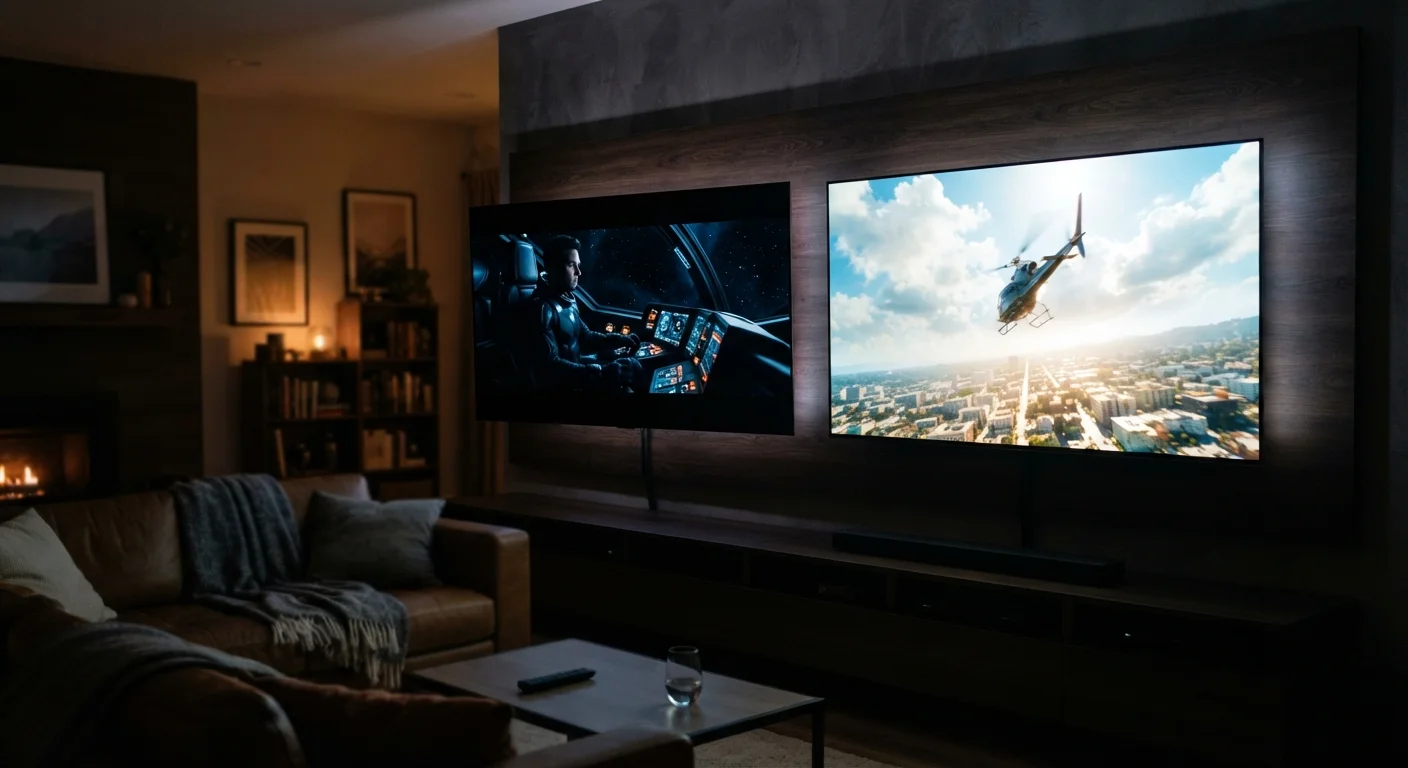
For a deeper look at how these same panel technologies play out on larger screens, the OLED vs. QLED comparison covers the TV context in detail.
Resolution, Brightness, and Refresh Rate in Practice
Beyond panel type, three additional figures shape daily experience:
Resolution determines how much information fits on screen at once. Common laptop resolutions include 1920×1080 (Full HD), 2560×1600 (often called QHD+ or WQXGA), and 3840×2160 (4K). Higher resolutions demand more graphics processing power and can reduce battery life, so they represent a trade-off worth weighing against your actual workflow needs.
Brightness, measured in nits, dictates how readable the screen is in different lighting conditions. A screen rated at 250 nits may feel comfortable in a dim room but appear washed out near a window. For reliable everyday use across varied environments, panels rated at 350 nits or higher offer noticeably more flexibility. Screens marketed for HDR content typically exceed 500 nits.
Refresh rate is measured in hertz (Hz) and determines how many times per second the image is redrawn. Standard displays operate at 60Hz. Displays at 120Hz or higher produce smoother motion - a meaningful difference for gaming, scrolling long documents, or video editing. For web browsing and spreadsheet work, the difference is less perceptible.
Check Color Gamut Coverage, Not Just Resolution
When evaluating displays for photo or creative work, look for sRGB or DCI-P3 coverage percentages in the specifications - not just resolution numbers. A 1080p panel with 100% sRGB coverage will produce more accurate colors than a 4K panel with 60% sRGB coverage. Many manufacturer spec sheets include this figure; independent display review sites often measure and publish it independently.
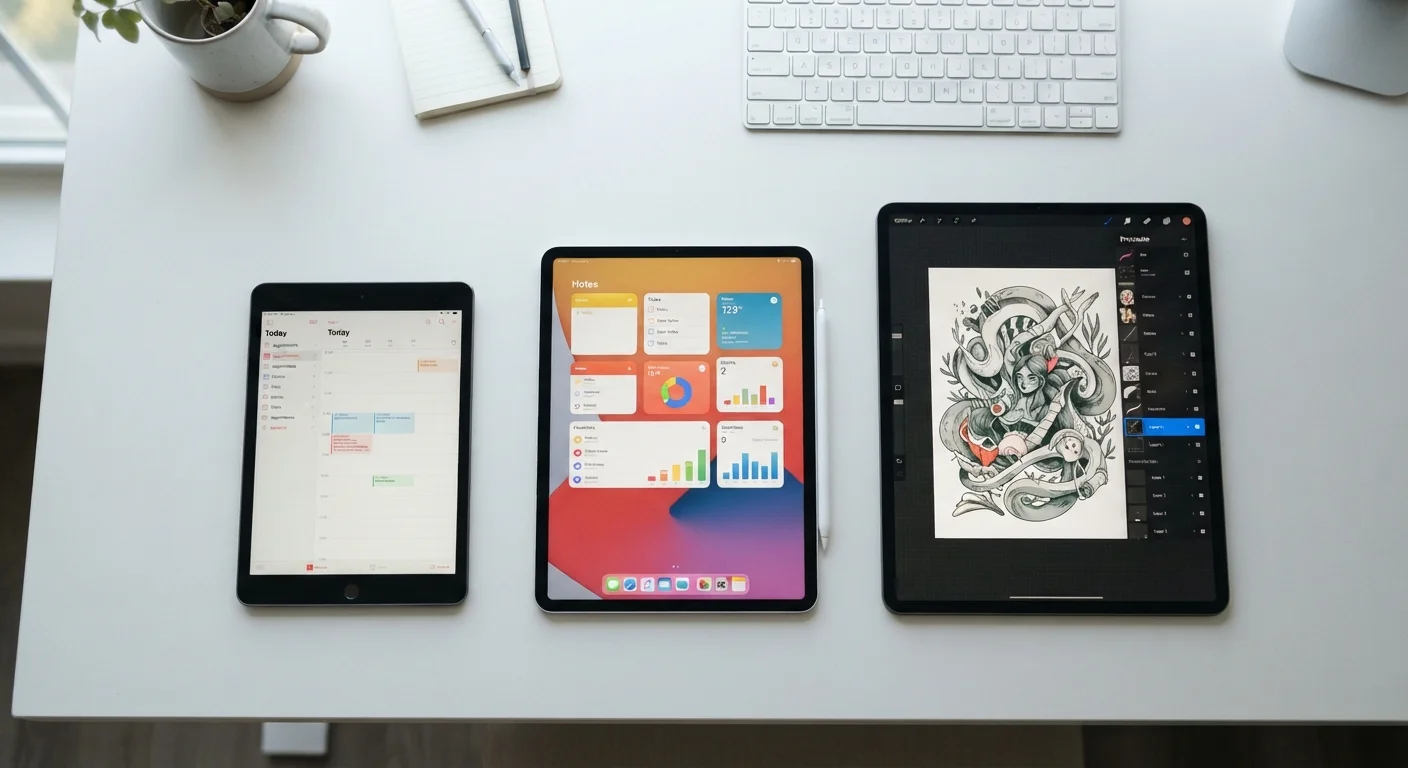
If your use case extends beyond a standard laptop, consider how these same variables scale across other screen categories. Our article on tablet screen sizes explores how display dimensions shape usability on smaller devices.
Matching Display Specs to Your Actual Use
The most useful display isn't the one with the highest specifications across every category - it's the one that fits how you actually work and where you use your laptop.
For general office work, web browsing, and video calls, a 1080p IPS panel at 300 nits or above handles all common tasks cleanly and keeps battery life reasonable. For creative work involving photo or video editing, a higher-resolution IPS or OLED panel with verified color accuracy (look for sRGB coverage percentages in specifications) will produce more trustworthy results. For frequent travel or outdoor use, brightness becomes a priority worth investing in.
Once you understand what display specs mean in practical terms, the next step is matching your full laptop configuration to your actual workflow. Our task-by-task laptop matching guide walks through how specific activities translate into hardware priorities across the whole machine.